INTEGRATION
Lever + BackgroundChecks.com
Connect your Lever account and order background checks in one-click!
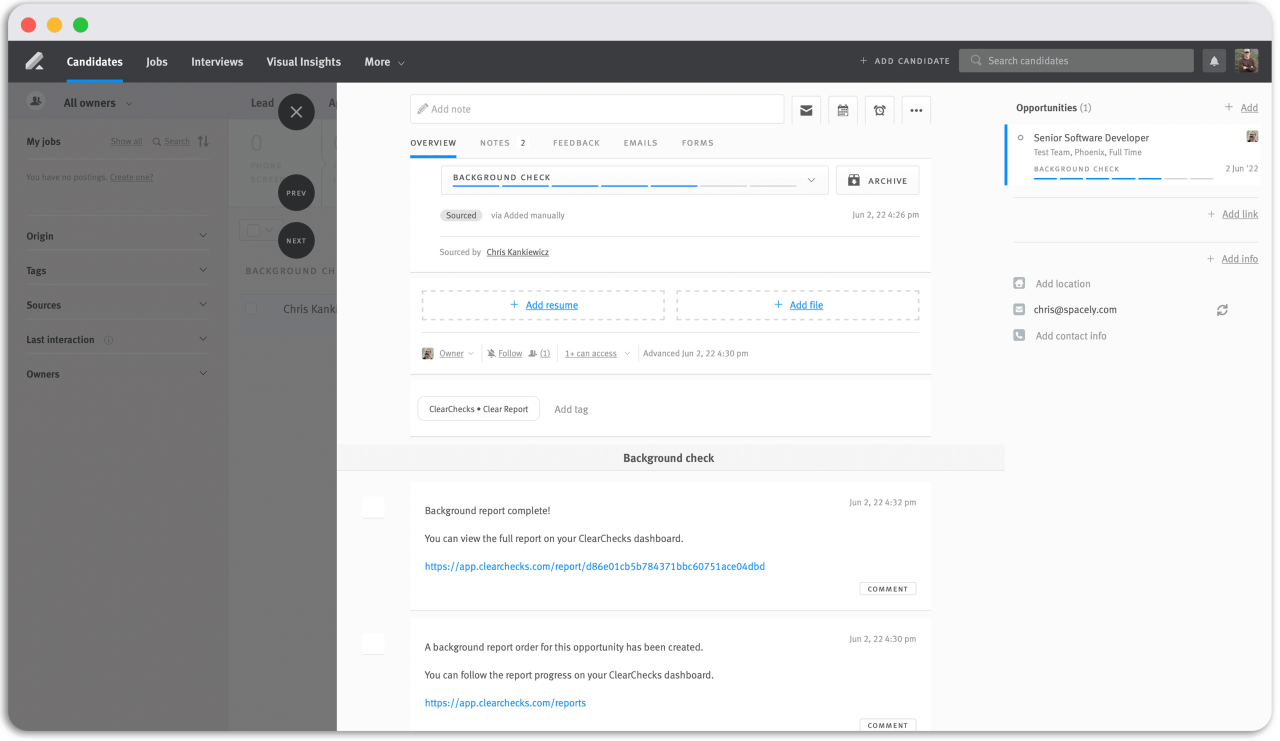
Image Grid
Two Columns /
Choose Image
Image Grid
Two Columns
Images*
Displays images in a grid
Drop to Upload
Browse
Browse Assets
Drag & drop here or or choose a file.
Asset | Actions |
|---|---|
lever_logo.svg | 2.04 KB |
Note: The Lever integration may be listed as "ClearChecks" as BackgroundChecks.com platfrom was formerly ClearChecks
You can learn more on the Lever site here:
https://marketplace.lever.co/providers/backgroundchecks-com
Summary
Our Lever integration allows you to order a background check on candidates automatically as you advance them to a selected stage.
This integration is designed to incorporate the background check process seamlessly into your workflow in Lever. This article will explain and show you how to:
Enable the Lever integration from your BackgroundChecks.com account
Order a background check by advancing a candidate to a selected stage within an opportunity
Click to view and review a candidate's background check
Requirements to Get Started
You must have a BackgroundChecks.com account and Lever account credentials that allow you to authorize a Lever Partner application.
If you are not a Lever customer, and would like to get a demo of the platform, please click here.
If you are not a BackgroundChecks.com customer, click the button below to create an account, or you may also contact our sales team sales@backgroundchecks.com to discuss custom packages or volume pricing.
Connect Lever to BackgroundChecks.com
Step 1: Authorize Lever Integration from your BackgroundChecks.com Account
Log into your BackgroundChecks.com account, and navigate to Integrations & API, click the 3rd Party Integrations tab, or click here for BackgroundChecks.com integration settings.
Click the toggle button to enable the Lever Integration
image
Choose Image
Image
Drop to Upload
Browse
Browse Assets
Drag & drop here or or choose a file.
1/1
Asset | Actions |
|---|---|
Choose Image Alt Text lever_clearchecks_integration_toggle.png | Set Alt 251.77 KB |
You will be prompted to enter your Lever credentials or use SSO (single sign on) provider like Google or Microsoft and authorize the BackgroundChecks.com app:
Image Grid
Two Columns /
Choose Image
Choose Image
Image Grid
Two Columns
Images*
Displays images in a grid
Drop to Upload
Browse
Browse Assets
Drag & drop here or or choose a file.
Asset | Actions |
|---|---|
Choose Image Alt Text lever_oauth_popup.png | Set Alt 583.87 KB |
Choose Image Alt Text oauth_authorize_lever.png | Set Alt 598.11 KB |
Step 2: Select Candidate Stage & Default Package
Once you have authorized the Lever integration in Step 1, the next page will ask you to select which candidate stage you would like to trigger a background check. In this example, we have a stage called "Background Check".
Note: Most Lever accounts will have a stage for a "Background Check", or you may have customized your stages and want to run a background check when the candidate is advanced to a different stage in your workflow.
You must specify what background check package you would like to enable and set as the default package.
To configure and order different packages by Job Posting or Candidate in Lever, see Step 4.
image
Choose Image
Image
Drop to Upload
Browse
Browse Assets
Drag & drop here or or choose a file.
1/1
Asset | Actions |
|---|---|
Choose Image Alt Text lever-stage-sku-select.png | Set Alt 116.40 KB |
Step 3: Toggle Webhook On from Lever
In order for BackgroundChecks.com to communicate with Lever, you must toggle on the Stage Change Webhook from within your Settings > Integrations and API in Lever. Turn this setting on, and you will see a webhook already created by BackgroundChecks.com. If you have other integrations, this may already be toggled on, so no further action is required.
https://hire.lever.co/settings/integrations?tab=webhooks
image
Choose Image
Image
Drop to Upload
Browse
Browse Assets
Drag & drop here or or choose a file.
1/1
Asset | Actions |
|---|---|
Choose Image Alt Text lever-webhook-toggle.png | Set Alt 279.53 KB |
Step 4: Configure Packages by Job Posting or Candidate with Lever Tags (optional)💡
When you connect your Lever account to BackgroundChecks.com, we automatically will configure your background screening packages in your Lever account through Lever Tags.
You can add a BackgroundChecks.com package tag to either a Job Posting or a Candidate.
The BackgroundChecks.com tag will be inherited by any Candidates from the Job Posting and will automatically run that selected package when they progress to the configured background check stage. This is helpful if you have different types of job functions requiring different background check packages.
Optionally, you can add a tag to any single Candidate, which will will automatically run that selected package when they progress to the configured background check stage.
WARNING: Do not add multiple BackgroundChecks.com package tags to a Job Posting or Candidate. We cannot guarantee which package will be ordered and billed with multiple ClearChecks package tags. Ensure only 1 BackgroundChecks.com package tag per Job Post or Candidate before progressing them to your background report stage.
Add ClearChecks Package Tag to Job Posting
image
Choose Image
Image
Drop to Upload
Browse
Browse Assets
Drag & drop here or or choose a file.
1/1
Asset | Actions |
|---|---|
Choose Image Alt Text Screen Shot 2022-07-11 at 4.30.52 PM.png | Set Alt 114.58 KB |
Add ClearChecks Package Tag to a Single Candidate
image
Choose Image
Image
Drop to Upload
Browse
Browse Assets
Drag & drop here or or choose a file.
1/1
Asset | Actions |
|---|---|
Choose Image Alt Text Screen Shot 2022-07-11 at 4.30.17 PM.png | Set Alt 35.69 KB |
Step 5: Done! 🎉 Order a Background Check on Candidate
The Lever integration is now complete. From within an opportunity, when you advance a candidate to your selected stage, a background check will automatically be ordered.
image
Choose Image
Image
Drop to Upload
Browse
Browse Assets
Drag & drop here or or choose a file.
1/1
Asset | Actions |
|---|---|
Choose Image Alt Text background-check-stage.png | Set Alt 245.20 KB |
How to View Status & Review Background Checks
You can track the status of the background check through a tag on an opportunity. These tags can be filtered across all opportunities.
The status tags are:
ClearChecks • Waiting for Applicant
ClearChecks • In Progress
ClearChecks • Clear Report
ClearChecks • Review Report
ClearChecks • Canceled
image
Choose Image
Image
Drop to Upload
Browse
Browse Assets
Drag & drop here or or choose a file.
1/1
Asset | Actions |
|---|---|
Choose Image Alt Text lever_tag.png | Set Alt 52.03 KB |
Also, a note is created with a link to your reports once an background check order is placed:
image
Choose Image
Image
Drop to Upload
Browse
Browse Assets
Drag & drop here or or choose a file.
1/1
Asset | Actions |
|---|---|
Choose Image Alt Text lever-order-clearchecks.png | Set Alt 67.92 KB |
Once a background check is complete:
You will have a note created with a link to the background check
A tag created and added to the opportunity:
ClearChecks • Clear Report
ClearChecks • Review Report
[Truncated]

